How to Save TikTok Recipes for Later (Without Losing Them Forever in Your Saved Folder)
The saved folder is where TikTok recipes go to die. Here's a simple system to save TikTok recipes you'll actually cook, with the ingredients and steps pulled out automatically.
You know the drill. You're scrolling TikTok at 11pm. Someone's making the most absurdly good-looking pasta with exactly four ingredients. You double-tap, hit save, tell yourself you'll cook it this weekend. Three months later your saved folder has 847 recipes and you couldn't name a single one.
The saved folder is where TikTok recipes go to die. It's designed for re-watching, not for cooking. Finding a specific recipe means scrolling past every fridge reorganization and gym transformation you also saved that week. And even when you find the video, you're squinting at on-screen text, pausing every 2 seconds, screenshotting ingredient lists, trying to figure out if the measurements were in cups or grams.
This guide walks through a better system: how to save TikTok recipes in a way that actually gets you cooking them.
Why the TikTok saved folder fails for recipes
Three reasons the default saved folder is the wrong tool for recipes:
- No search. You can't type "that creamy chicken thing" and find it. The saved folder is chronological, so a recipe from February is buried under every reel you've saved since.
- No ingredient list. The recipe is locked inside the video. You're stuck pausing, rewinding, and squinting at tiny on-screen text to figure out quantities.
- No categorization. Weeknight dinners, holiday desserts, meal prep, party snacks: they're all mixed together in one endless scroll.
A system that works for recipes needs three things the saved folder doesn't give you: searchable text, extracted ingredients and steps, and a way to sort by type of meal.
A simple system for saving TikTok recipes you'll actually cook
Here's the setup I recommend. The whole thing takes about 3 minutes to start, and every new recipe you save after that takes 10 seconds.
Step 1: Stop saving inside TikTok
Counterintuitive, but the saved folder is the problem. From now on, when you see a recipe you want to cook:
- Tap Share on the video.
- Instead of saving, send it somewhere you can search and organize.
You have two options: a note-taking app (Notion, Apple Notes, Google Keep) or a tool that does the transcription and ingredient extraction for you.
Step 2: Get the recipe out of the video
If you're doing this manually in a notes app, you'll need to watch the video, transcribe the ingredients and steps, and paste them with the original TikTok link. This works but takes 5–10 minutes per recipe, which is why most people give up and go back to saving inside TikTok.
The faster path is to use a tool that pulls the recipe out for you. LilyBoard does this automatically: you share the TikTok to @lilyboardco in a TikTok DM, send the word generate, and within a few minutes you get:
- A full ingredient list with quantities
- Step-by-step instructions
- Any tips, variations, or substitutions the creator mentioned
- A searchable transcript of the whole video
No pausing, no squinting, no screenshotting.
If you'd rather do it by hand, it helps to know that the ingredients are almost never in one place. They're split between the audio, the on-screen text, the caption, and sometimes a pinned comment, and each hiding place needs a different trick.
Step 3: Organize by meal type, not by date
However you're saving them, group recipes the way you'll actually use them. Weeknight dinners, weekend projects, desserts, lunches you can meal-prep on Sunday. When Wednesday at 6pm rolls around and you don't know what to make, you want to open the "30-minute weeknight" folder, not scroll through six weeks of chronological saves.
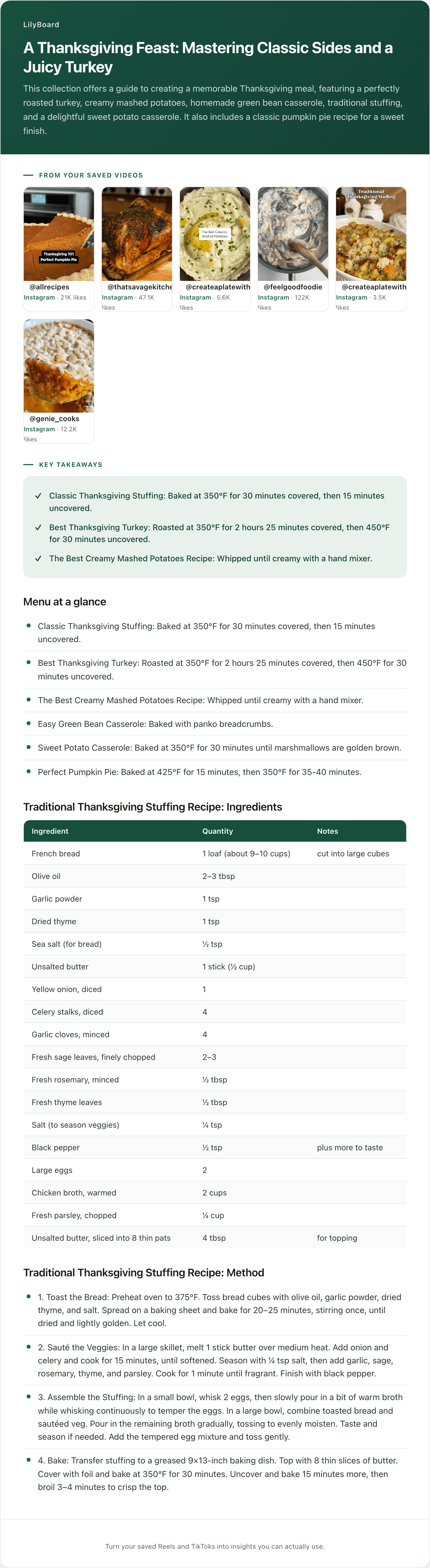
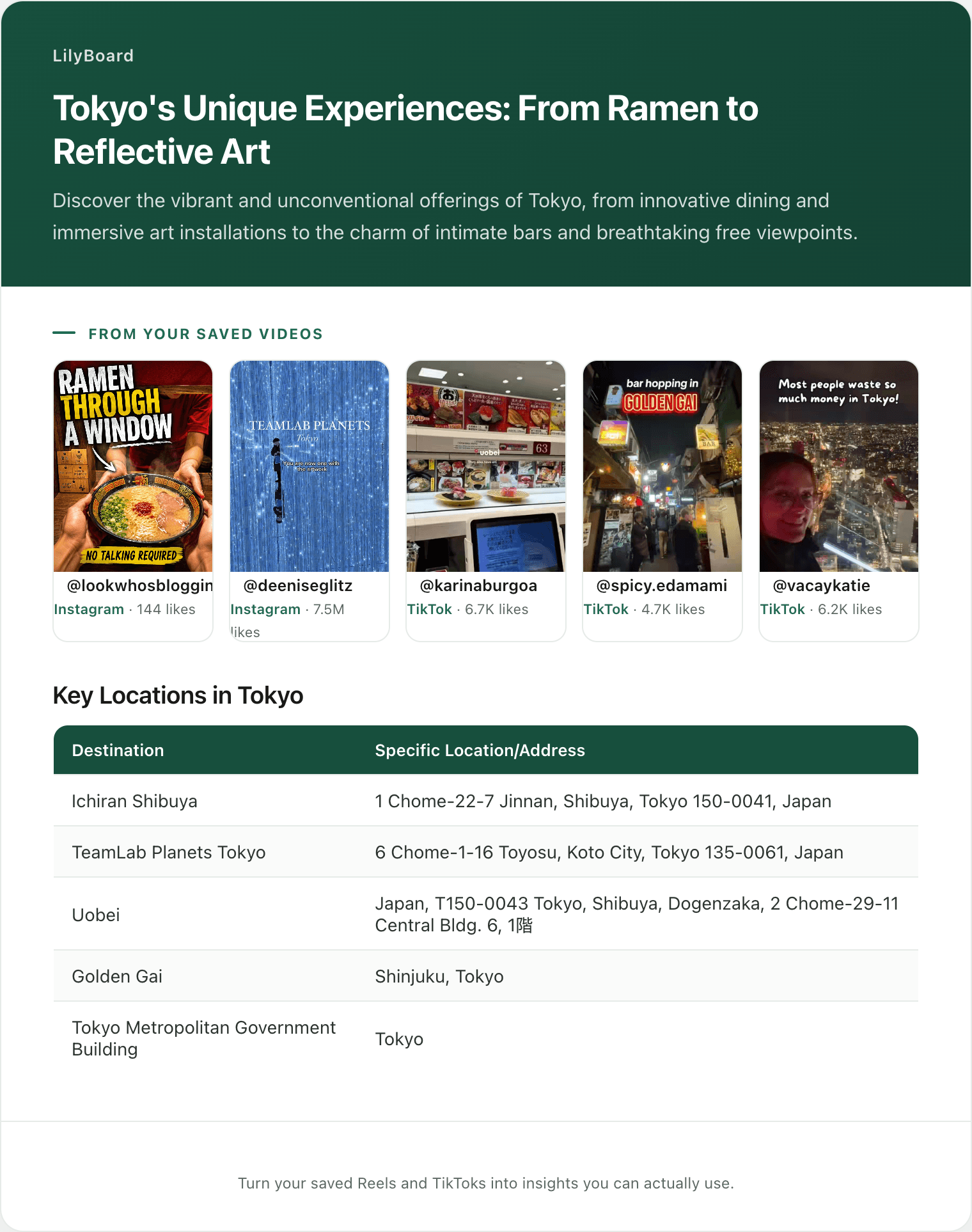
LilyBoard does part of this for you: every recipe gets filed under a category automatically, and a collection per meal type (call it "30-minute weeknight") does the rest. Once a few have stacked up, you can pull the whole group into one set:
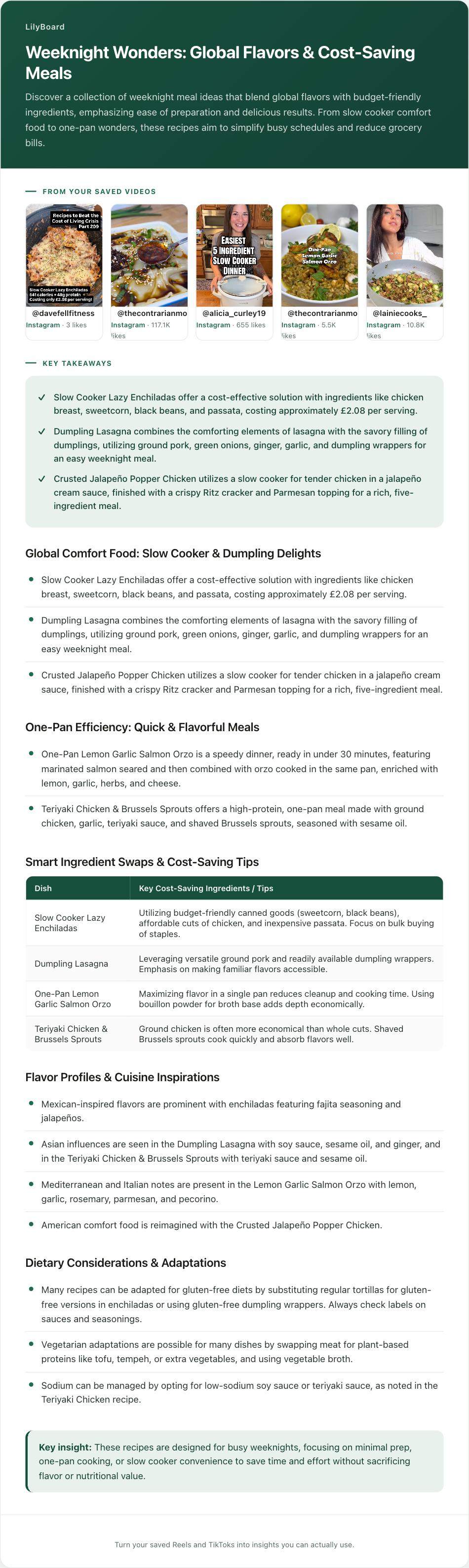
That's five separate saved videos collapsed into something you can read in a minute: what each dish is, roughly what it costs per serving, which ones are one-pan or slow cooker, and which swap cleanly to gluten-free or vegetarian. Choosing dinner from that is a completely different activity from scrolling a folder. If you want to run this deliberately every week instead of waiting for it to accumulate, meal planning from saved recipes covers the weekly version.
Step 4: Build a weekly habit, not a hoarding habit
The real problem with the saved folder isn't the folder: it's that saving feels productive even when you never cook the thing. Try this instead:
- Once a week (Sunday works well), pick 2–3 recipes from your saved list for the coming week.
- Actually put the ingredients on the grocery list. If you picked three recipes, that's three ingredient lists to merge, deduplicate, and sort by aisle, which is its own small chore worth doing once and automating.
- After you cook one, mark it tried. Add a one-line note: "great but too salty," "kids loved it," "half the garlic next time."
After a month of this, your saved recipes are no longer a graveyard: they're a working cookbook of things you've tested, with notes from your own kitchen.
What this looks like in practice
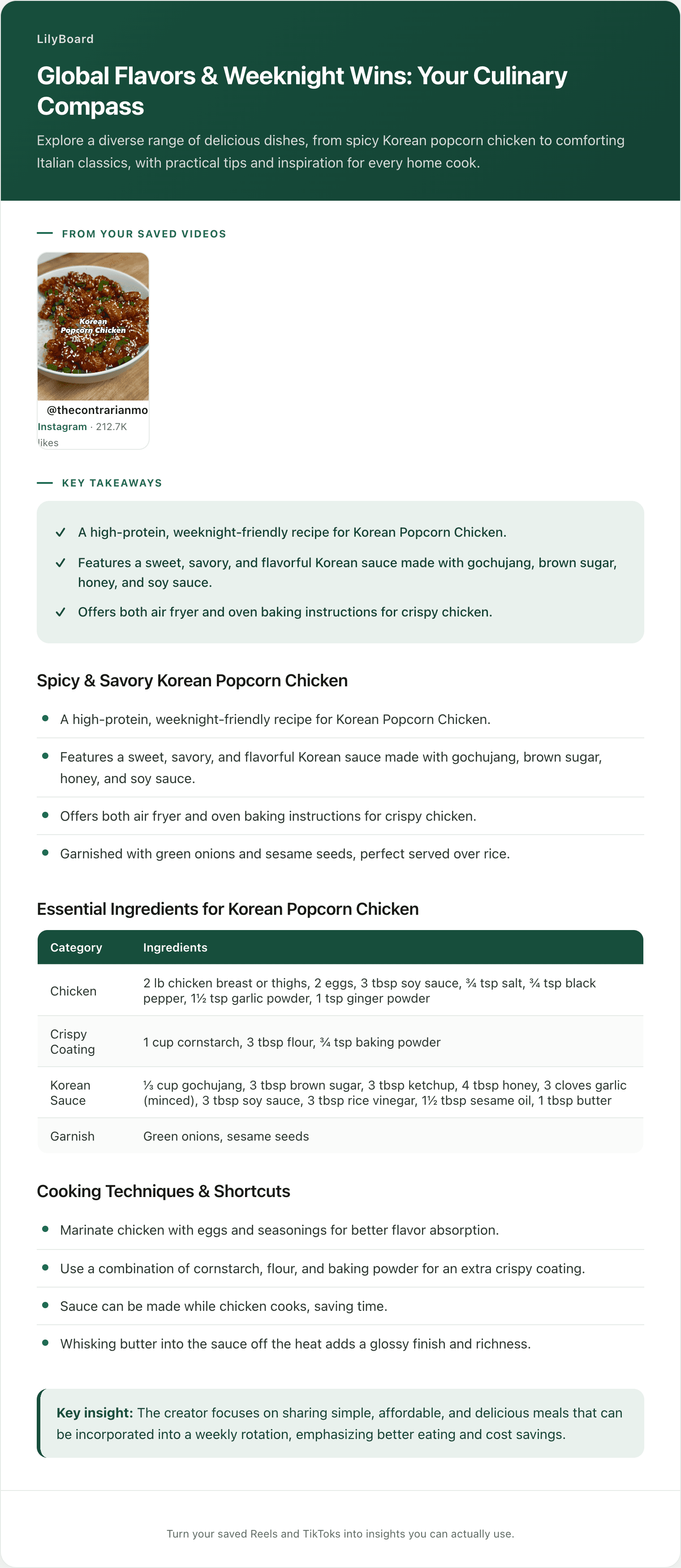
Here's a real example from a LilyBoard user: a Korean popcorn chicken Reel, turned into a structured recipe.
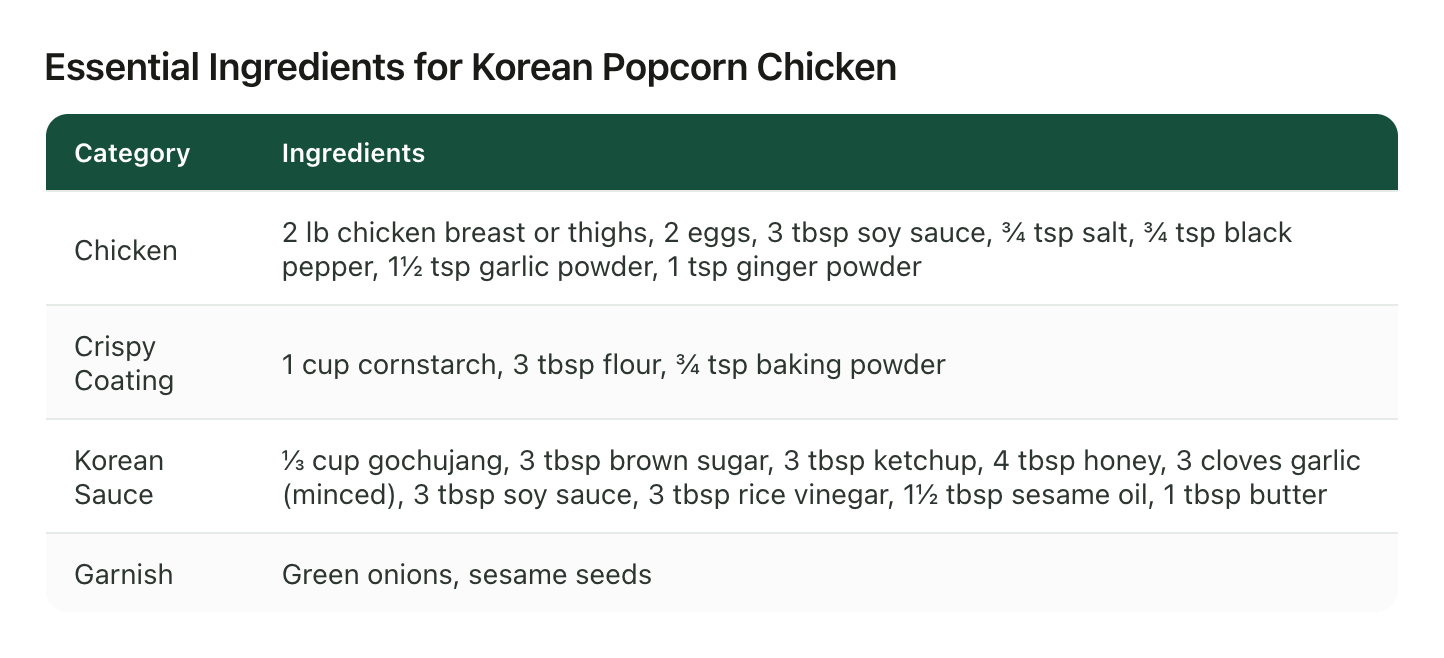
The Reel moved fast, the way recipe videos do, and nobody is pausing one 15 times to catch every measurement. But the output above gives you the full ingredient list with quantities, the crispy-coating mix, and the whole gochujang sauce broken down, all on one screen, plus both air-fryer and oven instructions. Saved as a searchable recipe, filed with your other food saves.
That's the difference between saving a recipe and actually being able to cook it.
Which approach is right for you?
There are really only three ways to keep a TikTok recipe so you can cook from it later. Pick based on how many you save, not on which one sounds most organized.
Screenshots and the camera roll. Free and instant, and genuinely fine if you cook one saved recipe a month. The catch is that a screenshot is an image: your phone can't search inside it for "gochujang", and the quantities are only as readable as the frame you happened to catch. Most people end up with 40 near-identical photos of the same ingredient overlay and no idea which video any of them came from.
A notes app (Notion, Apple Notes, Google Keep). Searchable, taggable, and yours forever. The cost is the 5 to 10 minutes per recipe you spend watching, pausing, and typing. That's worth paying for a recipe you already know you love. It falls apart the week you save nine.
A tool that transcribes the video for you. You forward the video once and get the ingredients, steps, and a searchable transcript back without typing anything. This is the right call if the thing stopping you from cooking is the transcription work rather than the saving.
The trade is time against setup. Under about 20 saved videos, a notes app is fine and you should just use it. Past that, the manual transcription step is precisely why the folder keeps growing, and handing that step off is the only change that moves the number.
Does this work for Instagram Reels too?
Yes, and most people end up saving from both apps. One difference worth knowing: Instagram still has no native comment search, so the "the real recipe is in a pinned comment" fallback that works on TikTok is much harder to lean on there. The system in this post is the same either way, but the Instagram side is worth setting up on its own if that's where most of your food scrolling happens.
A few more tips
- Save the source. Always keep the original TikTok link attached to the recipe. If you have a question about technique, you can re-watch the relevant clip.
- Screenshot the final plating. Before you send the video off to get transcribed, take a screenshot of the finished dish. Looking at the actual food makes you way more likely to cook it this week.
- Be ruthless. If you haven't cooked a recipe after 3 months in your "to try" list, delete it. You won't.
TL;DR
The TikTok saved folder wasn't built for recipes. To actually cook what you save, you need three things it doesn't give you: search, extracted ingredients and steps, and sensible categories.
The easiest way to get all three at once is to send recipe Reels and TikToks to a tool that does the transcription for you. Try LilyBoard free (10 recipes/month, no card). Send any Reel or TikTok to @lilyboardco on Instagram or TikTok, send the word generate, and get a clean, searchable recipe in minutes.
Your saved folder will thank you. Your grocery list definitely will.
Try it on your own saved videos
Free for 10 videos/month. No card required. Send any Reel or TikTok to @lilyboardco and get a summary, transcript, and category in minutes.
Start for free