How to Build a Notion Travel Planner From Your Saved TikToks (One Database, Five Views)
A Notion travel planner works when it holds one trip, not every video you ever saved. Here's how to build one from your saved TikToks: one database, a map of every place, a board for each day, and a copy that works offline.
The trip is booked: Tokyo, ten days in March. The plan, such as it is, lives in your TikTok favorites. A ramen counter where everyone eats alone in a booth. Conveyor-belt sushi you order from a screen. An alley in Shinjuku with 200 tiny bars. An art museum where you wade through water barefoot. All of it sits in the same grid as a skincare routine and a dog that says "hello." A Notion travel planner built from those TikToks is the obvious fix, and it works, as long as you build it for one trip instead of for everything you've ever saved.
If you've tried Notion for saved videos before, you know how that version ends: a database for every video, a column you typed by hand, and nothing added after week two. A trip is a different job. It has twenty or thirty places, a departure date and an end. That's a database you'll actually finish.
How to build a Notion travel planner from TikTok, starting with the database
Create a new page, name it after the trip ("Tokyo, March"), and under Get started with, select Table. Every place from every TikTok becomes one row. The first column, the one every database starts with, holds the place's name: write it the way you'd search for it, "Ichiran Shibuya," not "ramen place." Then add these properties with the + next to the right-most column:
- Place, a place property. It takes a location name or an address, and it's what puts the row on a map.
- Area, a select: Shibuya, Shinjuku, Toyosu. You'll plan by neighborhood, so give it a column.
- Day, a select: Day 1 through Day 10, plus "Not yet."
- Book ahead, a checkbox.
- Cost, a number formatted as currency.
- Link, a URL, for the TikTok itself.
- Why, text. The reason you saved it, in your own words.
Turning a TikTok into a row
Notion's mobile clipper is built for pages in a browser, not for other apps, so from TikTok it's a manual hand-off: tap Share, then Copy link, and paste it into Link. Then get the name. Check for a location tag, the caption (tap more) and the comments, where the creator may have pinned the answer. Every other place a name can hide is in how to find the location of a TikTok video.
Fill in Why before you close the video: "creator says the line moves fast after 9pm," "cash only," "the one with the mirror floors."
Five views of the same trip
The rows are the trip. The views are how you look at it. To add one, hover over the current view's name and select the + beside it.
1. The inbox: the table you already have
Leave the first table as it is. Every new TikTok lands here with Day set to "Not yet," and you sort it out later.
2. By area: a board grouped by neighborhood
Add a Board, open the settings menu at the top right of the database, select Group, and pick Area. Each neighborhood becomes a column of cards, and the clusters show up straight away. Take the five Tokyo videos further down: Ichiran and Uobei are both in Shibuya, Golden Gai is in Shinjuku, and teamLab Planets sits out in Toyosu on its own. That's half a day, not a stop on the way to dinner.
3. The map
Add a view, choose Map, name it and select Create. A map view runs on a place property, and if the database doesn't have one yet, Notion adds it for you. Click a pin to open that place's page. A row with no pin usually means its address didn't match a real location, so fix the Place and the pin appears. A map shows up to 100 places at once, which is plenty for one trip.
4. The days: a board grouped by Day
Add another Board and group it by Day. Now drag cards out of "Not yet" and into the days, one area at a time: Shibuya on one day, Toyosu on another. This board is the itinerary. Whatever's still sitting in "Not yet" when you leave is what got cut.
5. Book before you fly: a filtered table
Add one more Table, open the settings menu, select Filter under View settings, and filter on Book ahead so only the ticked places show. That's the list to clear before you leave: timed tickets, reservations, anything that sells out. Planning with someone? Select Save for everyone so the filter sticks for them too.
Before you fly: make it work without signal
Notion works offline, but only in the app, and only for pages you've downloaded. Open the trip page, select ••• at the top, and toggle on Available offline. Three details matter for a trip:
- The first view is the one that comes along. Notion downloads the first 50 rows of the database's first view with the page. Views reorder by dragging, so put the Days board first.
- It's per device. Download it on the phone you're taking, not just the laptop you planned on.
- Embeds don't work offline. The TikTok won't play on the plane, which is exactly why Why is plain text.
On the street, you'll still want a real maps app for directions. Saving TikTok places to Google Maps and the Apple Maps version cover that hand-off.
The part Notion can't do
Every row above starts with you pausing a video. For one TikTok, that's a couple of minutes. But a good travel TikTok can name five or six places in under a minute, and a trip's worth of saves can run to thirty or forty videos. That's a lot of typing, which is how most trip databases end up with six careful rows and a column of links nobody opened again.
LilyBoard does the pausing. Instead of tapping the bookmark, share the TikTok to @lilyboardco in a TikTok message. Each video lands in your dashboard with its description and what the creator said, taken from the captions TikTok made for it. When a trip's worth is in, send the word generate (or select the videos on your videos page and use the button), and one insight comes back, by email and in the app: the places named across all of them, written out as text, with the original videos linked.
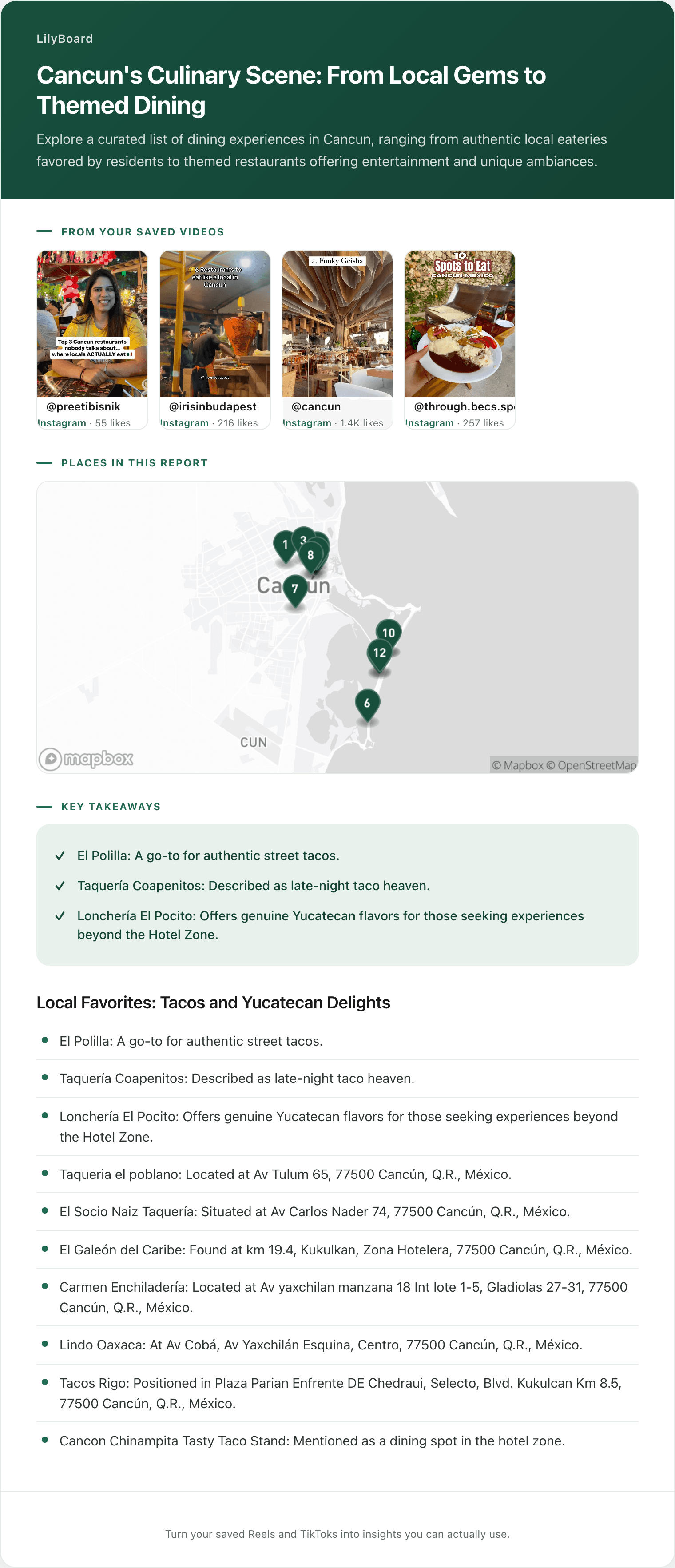
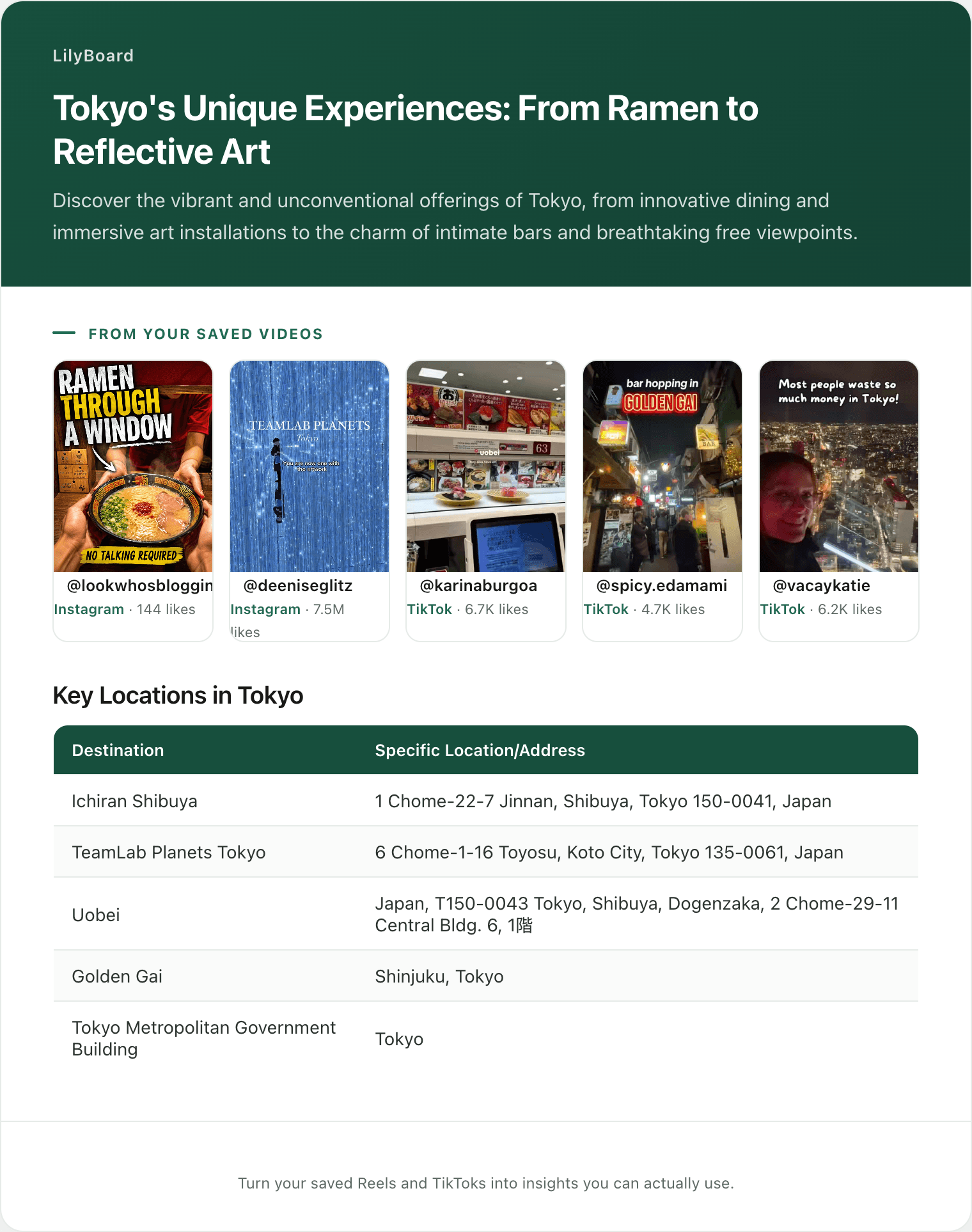
Here's part of one of ours, from five saved Tokyo videos: three TikToks and two Instagram Reels, which land in the same dashboard when you share them to @lilyboardco on Instagram.
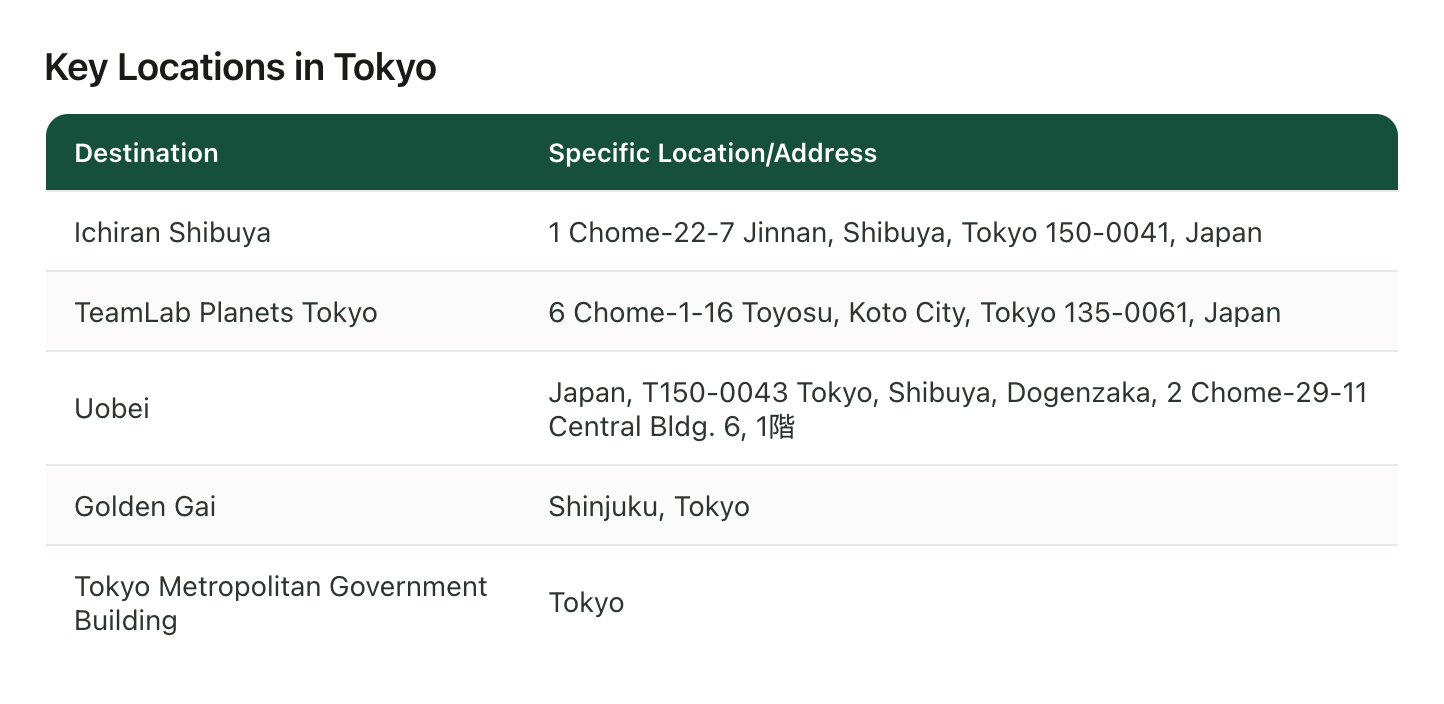
That's your name column and your Place column, already typed. Three of the five came back with full street addresses, and Uobei's even keeps 1階, the ground floor, the kind of detail nobody types out from a video. Golden Gai comes back as "Shinjuku, Tokyo," which is fair: it's an alley of bars, not one door.
The asides come back too, and they fill in the rest of the row:
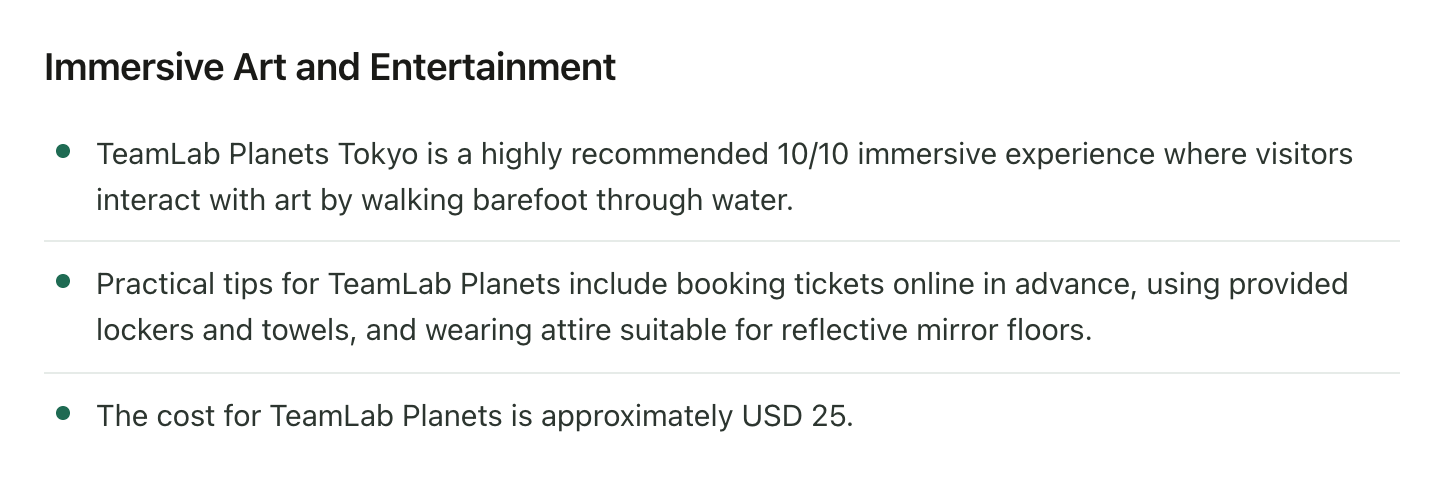
Book tickets online in advance: tick Book ahead. Approximately 25 US dollars: that's Cost, a ballpark until you check the current price. Barefoot through water, lockers and towels provided, mirror floors: that's Why, and it decides what you wear that day.
To set it up:
- Sign up, and add the TikTok username you'll be sending from.
- Follow @lilyboardco on TikTok so you can message it.
- On a travel TikTok, tap Share and send the video itself to @lilyboardco. A pasted link doesn't get picked up.
Nothing comes back in the chat. The video shows up in your dashboard.
What it won't do
It won't write to Notion. There's no export, so filling in the rows is still copy and paste, one place at a time. It only reads the TikToks you send it, and it can only find a place somebody named. On the free plan it works from what was said, using TikTok's captions, plus the description, so a video TikTok never captioned has only its description to go on. Plenty of travel TikToks are music with the names typed on screen, and reading that text takes Standard or Pro. A name TikTok misheard stays misheard, which is why every insight links back to the videos. And its own map can't pin a lot of venues in Japan yet, so a Tokyo batch comes back as more list than map.
Start with the trip you've actually booked
Make the trip page tonight: one table, seven properties, five views. It takes ten minutes, and it's fine empty. Then go through your favorites and share that trip's TikToks to @lilyboardco. The free tier covers 10 videos a month, no card, so start with the ten you're surest about. When the insight lands, the rows go in one sitting, and the itinerary is a drag-and-drop job.
The travel enthusiasts guide shows what the whole thing looks like once you're there.
Try it on your own saved videos
Free for 10 videos/month. No card required. Send any Reel or TikTok to @lilyboardco and get a summary, transcript, and category in minutes.
Start for free