How to Save TikTok Places to Google Maps (Without Typing Them In One by One)
You found six places in one TikTok and want them on a map you can actually navigate with. Here's how to save TikTok places to Google Maps by hand, and the shortcut that maps a whole saved folder at once.
You know the exact moment this becomes a real problem. You're standing on a corner in a city you flew nine hours to reach, you know there's a tsukemen place around here somewhere because you watched a video about it in bed three months ago, and everything you have to go on is a bookmark. Not an address. Not even a name you're sure about. A bookmark, in a folder with two hundred other bookmarks, on an app that has no map.
Google Maps is where places belong. TikTok is where you find them. The gap between the two apps is where your best finds go to die, so learning how to save TikTok places to Google Maps is one of the highest-leverage habits a traveler can build. Here's the manual way, done properly, and then the shortcut for when the manual way meets a saved folder with fifty travel videos in it.
How to save TikTok places to Google Maps by hand
The manual method is three steps per place. None of them are hard. The problem, which we'll get to, is the word "per place."
Step 1: get the name out of the video
Before Google Maps can save anything, you need the actual name, and travel videos are weirdly good at hiding it.
Check the tag first. On TikTok, some videos have a tagged location under the caption; on Instagram Reels it sits at the top of the screen. If it's there, you're one tap from the place page, and you can skip straight to step 3. Creators who tag are a gift. Most don't.
If there's no tag, the name is either flashing on screen or spoken. For on-screen text, pause (good luck, TikTok's scrubber fights you), screenshot, and let Google Lens or iPhone Live Text read the name off the image, which beats retyping romanized Japanese by hand. For spoken names, slow the video to 0.5x and listen again. And before doing any of that, search the comments for "name" or "where": forty people asked before you, and the creator usually answered one of them or pinned the list.
We went deeper on this extraction step, all the hiding places and the trick for each, in how to find every place mentioned in a travel reel.
Step 2: find the right one in Google Maps
Paste the name into Google Maps and check you have the place from the video, not just a place with that name. This trips people up constantly. Search a well-known ramen name in Tokyo and you get twenty branches; the video was about one specific counter in one specific basement. Match the neighborhood if the creator said it, and when in doubt, compare the storefront photos on the Maps listing to the video. Thirty seconds of checking now saves you a cross-town trip to the wrong branch later.
Step 3: save it to a list, with a note
Don't just tap Save and dump everything into "Want to go." Make a list per trip ("Tokyo, spring") and, this is the part everyone skips, add a note to each place while the video is still fresh: "order the yuzu shio, counter seats only, closes at 3." Google Maps lets you attach a note to any saved place in a list. The pin without the note is half the value, because six months from now the pin tells you where the place is but not why you cared.
That's the whole method. Tag or extract, verify, save with a note. For one video, it's five minutes and genuinely worth it.
Where the manual method stalls
Now the math. A good travel video isn't one place, it's five or six, stacked in forty seconds. Five minutes of extracting and verifying per place means one video costs you twenty-five minutes of homework. A saved folder with fifty travel videos in it is a part-time job you will never do, and you know you'll never do it, which is why the folder just keeps growing while the pins never appear.
So people do the honest version of giving up: they map the two or three videos they remember best and let the rest sink. The creator with the uncle's tempura place, the stairwell bar with no sign, gone, not because the video disappeared but because it never made the jump from folder to map.
The shortcut: map the whole folder at once
This jump is exactly what LilyBoard was built for. Instead of bookmarking the next travel video, share it to @lilyboardco in a DM on the app you found it on, TikTok or Instagram. A few minutes later it's in your dashboard, and when you send the word generate it comes back as an insight: every place the video named, spoken or on screen, pulled out as text with the name, the one-line reason it was worth saving, and an address you can paste straight into Google Maps. No pausing, no Lens, no 0.5x replays.
And because every video you send lands in the same archive, the places don't stay trapped inside their videos. Send a week of Tokyo saves and they all land together on one map:
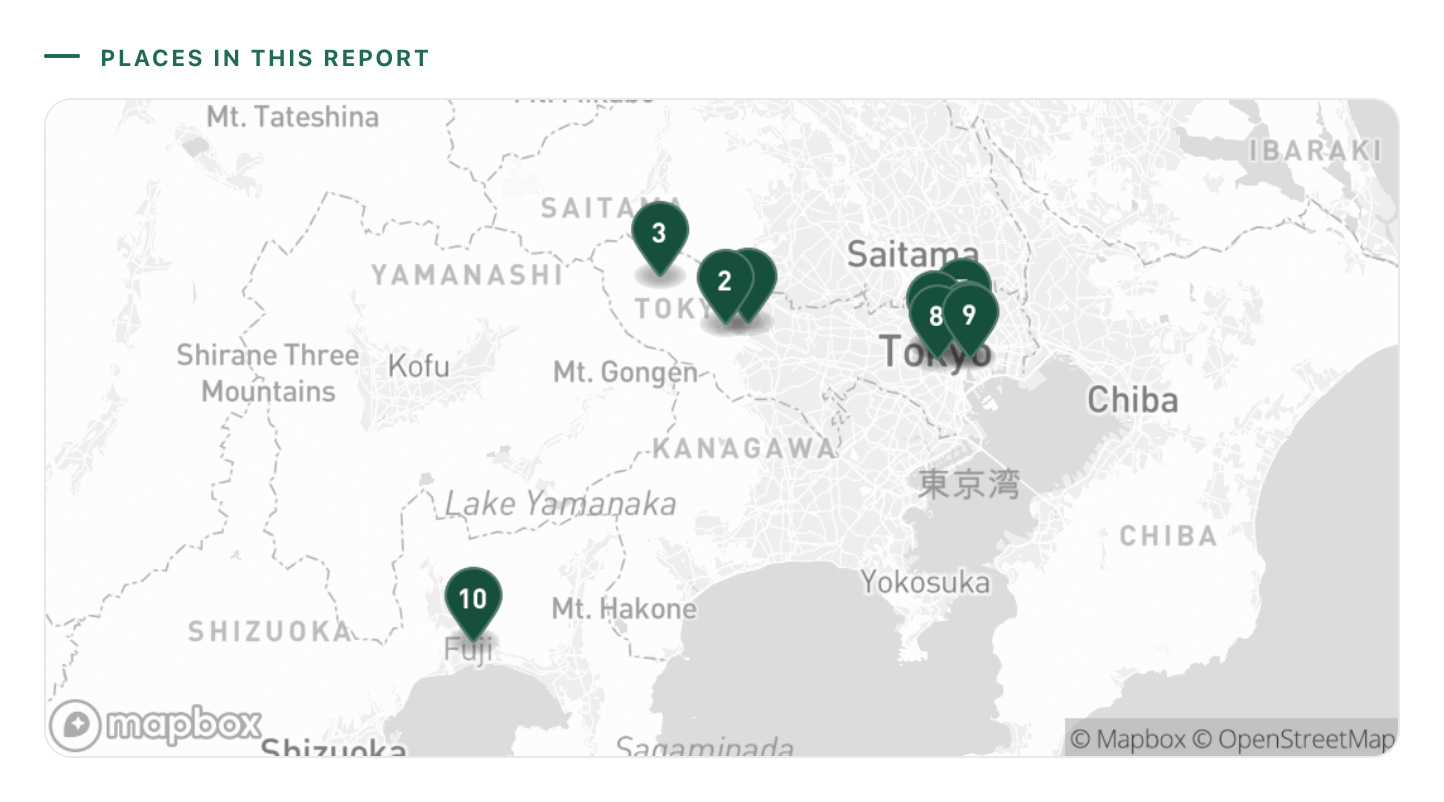
That map is the thing the saved folder could never give you. Fifteen creators quietly pointing at the same two neighborhoods is invisible in a list of thumbnails and obvious the second it's pins. You can see which spots cluster within a walk of each other, plan days by area instead of by vibe, and paste any address into Google Maps when it's time to actually navigate there.
One honest note: LilyBoard reads the videos you send it, not all of TikTok. It won't discover new places for you. It gets the places out of the videos you already decided were worth saving, which was the part costing you twenty-five minutes a video.
It works for the hotel shortlist too
Places aren't only restaurants and viewpoints. If your saved folder has a run of "where to stay in Tokyo" videos, those extract the same way, and side by side they turn into an actual shortlist instead of six videos you'd have to rewatch to compare:
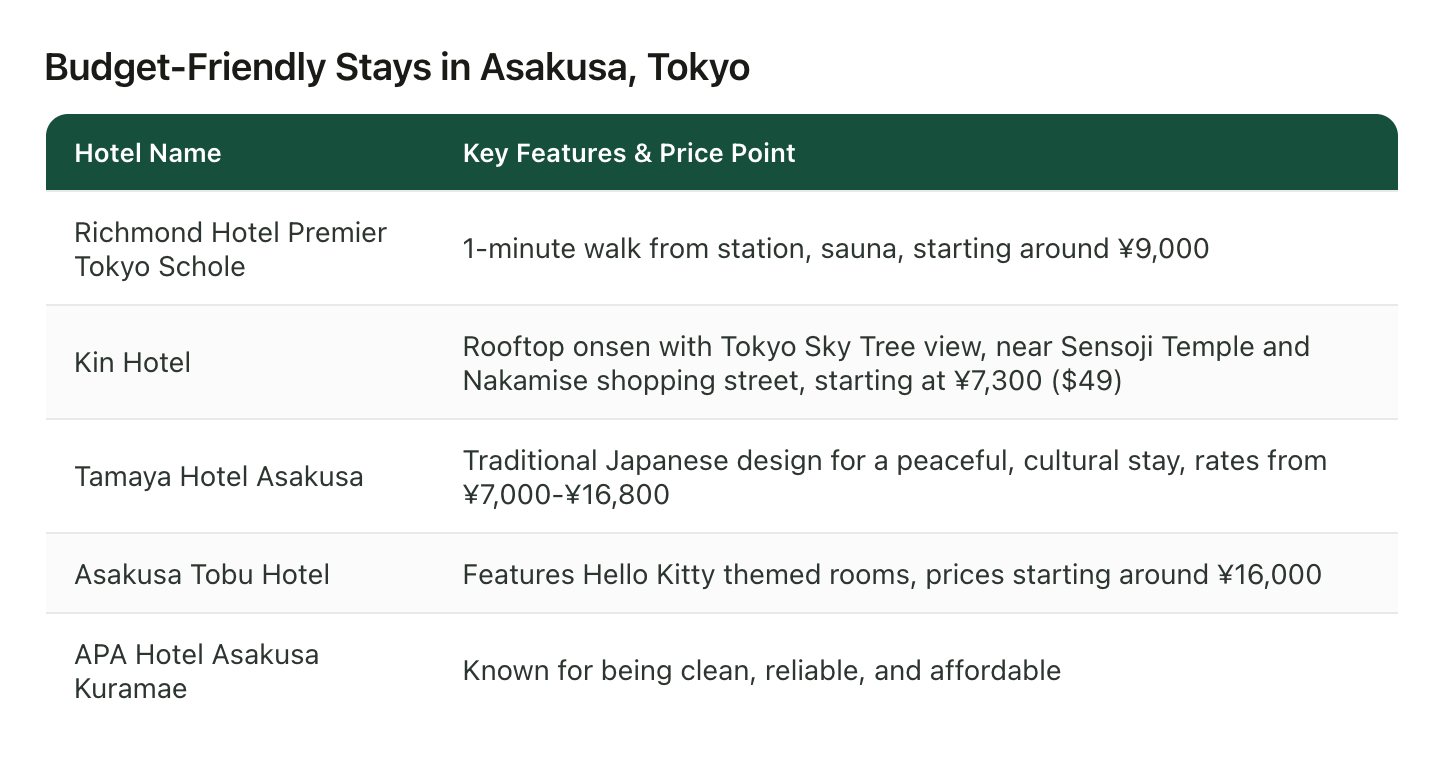
Area and price range next to each other, in text, is a decision you can make in two minutes. Six separate videos is a decision you keep postponing.
Set it up once
- Sign up at lilyboard.com and add the TikTok or Instagram username you save from. The free tier covers 10 videos a month, no card.
- Follow @lilyboardco on that app (TikTok or Instagram) so your DMs go through cleanly.
- Next time a travel video stops your thumb, tap Share and send it there instead of tapping the bookmark. Once a few are in, send the word generate.
From then on every save arrives as places with addresses, already on a map, and Google Maps goes back to being the last step instead of the homework. If your travel saves are currently scattered across two apps and a camera roll, getting them into one place is the step before this one, and the LilyBoard travel guide covers what to do with the places once you land.
The corner-in-a-foreign-city moment doesn't have to end with you scrolling a folder in the rain. Save the places, not the videos, and the tsukemen is a pin you tap, not a bookmark you lost.
Try it on your own saved videos
Free for 10 videos/month. No card required. Send any Reel or TikTok to @lilyboardco and get a summary, transcript, and category in minutes.
Start for free