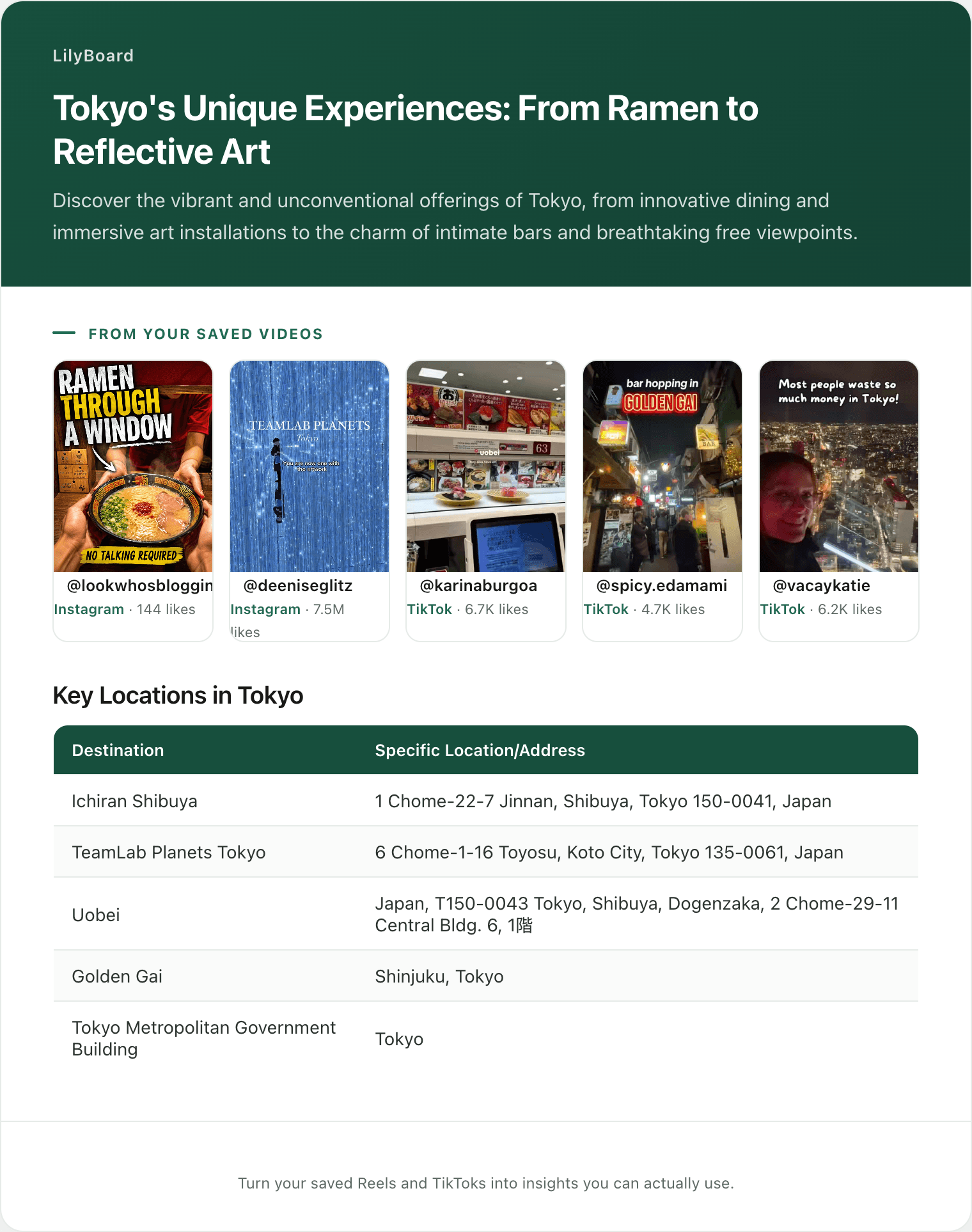
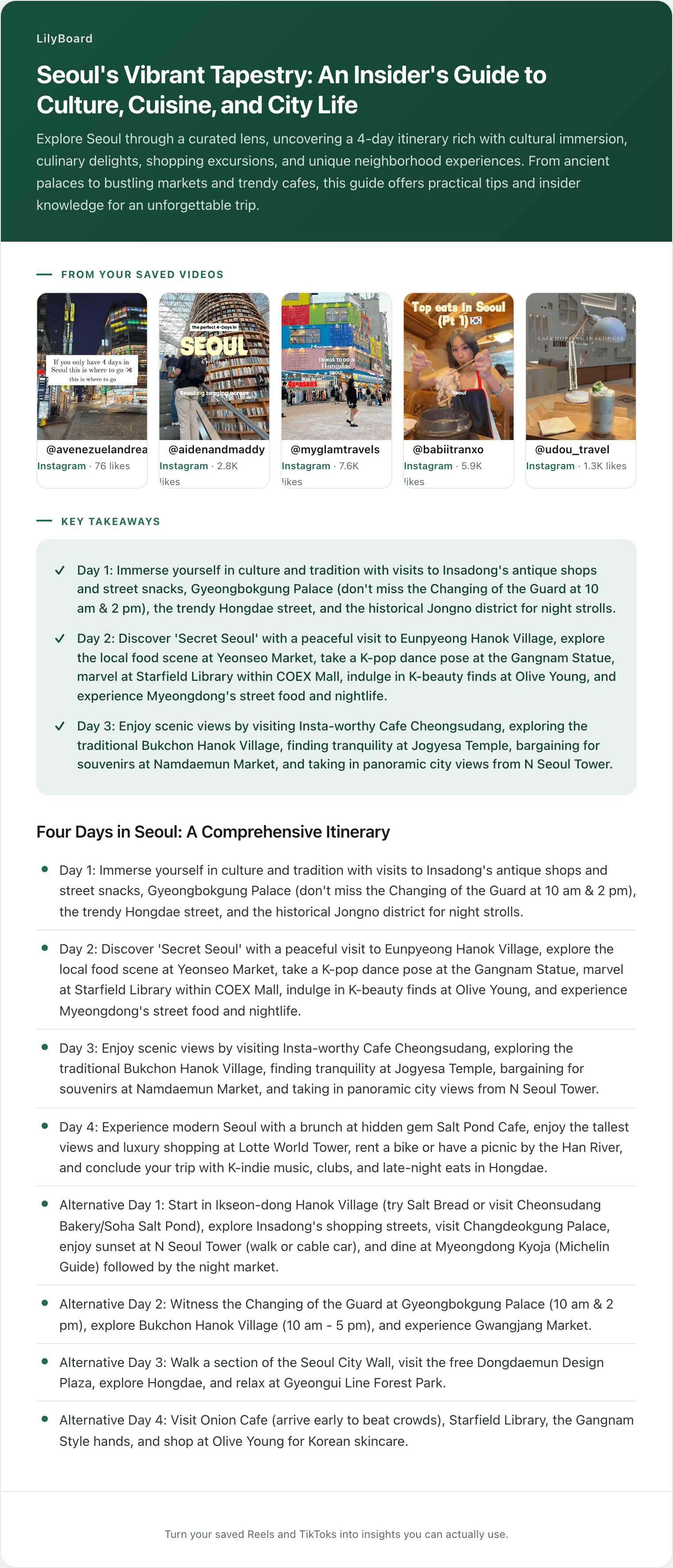
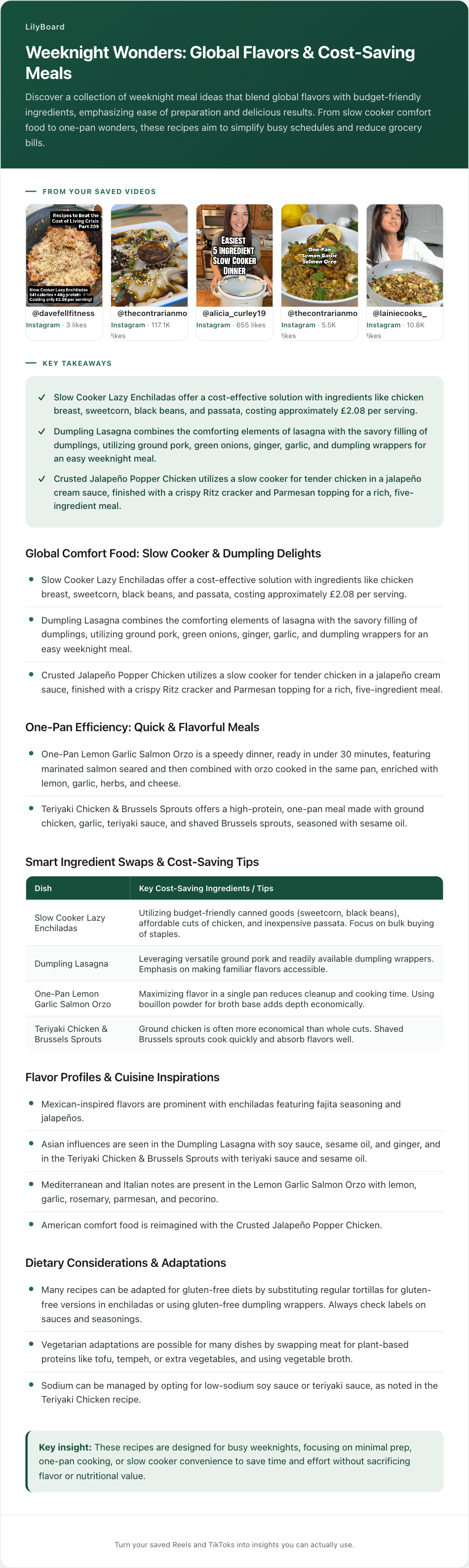
How to Save TikTok Places to Apple Maps (A Guide per Trip, a Note on Every Place)
Apple Maps can hold every place from your travel TikToks, sorted by trip, with a note on each. Here's how to save TikTok places to Apple Maps on an iPhone, from pulling the name out of the video to downloading the area before you fly.
Figuring out how to save TikTok places to Apple Maps turns out to have very little to do with Apple Maps. Somewhere in your favorites there's a taco stand, a rooftop bar and a beach club with a swing over the water, all for a trip you've already booked, filed in the same grid as a skincare routine and somebody's sourdough. Apple Maps will happily hold every one of them, sorted by trip, with a note on each. What it can't do is watch a video. Each place has to come out of TikTok as a name first, and that's the slow part.
Most of what the job needs is already on your iPhone, though. The trick is doing each piece at the moment it's easiest, from the couch where you save it to the street corner where you need it.
How to save TikTok places to Apple Maps, from the couch to the corner
What you're building is one guide per trip, a note on every place saying why you saved it, and the area downloaded to your phone before you go.
On the couch: get the name while the TikTok is open
Apple Maps needs a name, and a video is never easier to read than while it's on your screen.
Check for a location tag first: a place name with a pin icon near the caption. Tap it and TikTok opens a page for that place, usually with the address. No tag? Tap more on the caption and look for a 📍 line at the bottom, then open the comments, where the creator may have pinned the answer.
If the name is only on screen, take a screenshot and let your iPhone do the reading. Open the screenshot in Photos, tap the Live Text button (a small frame with lines of text in it), then touch and hold the words to copy them. If what it found is a street address, Live Text offers a quick action for directions, which takes you straight to Maps. On an iPhone 15 Pro or newer with Apple Intelligence, pressing the screenshot buttons also opens Visual Intelligence: swipe over the storefront to search just that, or tap Ask and ask what the place is.
If the name is only said out loud, turn captions on (tap Share, then Captions) and slow it down from the press-and-hold menu. Every other place a name can hide, from comment keywords to the creator's other videos, is in how to find the location of a TikTok video.
Still on the couch: file it in a guide for the trip
Search the name in Apple Maps, adding the neighborhood if the creator mentioned one. Plenty of places have more than one branch, so before you save, compare the place card's photos with what you saw in the video.
Then file it. Swipe up on the card at the bottom of Maps, tap Your Guides, then the add button, and name the guide after the trip ("Cancún, December"). For each place, open its place card, tap More (the three dots), then Add to Guides, pick the trip and tap Done.
Before you close anything: write the note
This is the step that makes the guide worth having. On the same place card, tap More, then Add a Note, and write down why you saved it while the video's still fresh: "go before noon, cash only, the creator got the fish tacos." In three months the pin will still be there. What you'll have forgotten is why.
Notes are private, though if you share a single place, the note goes along as text with the link. Adding a note also saves the place to your Places, and the reverse is the one to remember: remove a place from your Places when you tidy up later, and its note gets deleted with it.
Before you fly: download the area
A guide is only useful if the map loads. Apple Maps can keep a whole area on your phone: touch and hold the map over your destination until a pin appears, tap Download, adjust the box, and tap Download again. (Or tap your picture or initials by the search field, then Offline Maps.) With the area saved, Apple says place cards still show hours and ratings, and turn-by-turn directions work for driving, walking, cycling and transit, all without Wi-Fi or cellular.
Offline maps aren't available in every country or region, so check before you fly, not at the gate. Downloads also wait for Wi-Fi unless you change the setting to Wi-Fi + Cellular.
Traveling with someone? Open the guide from Your Guides and tap Share. If half the group is on Android, a shared Google Maps list is the easier hand-off, and saving TikTok places to Google Maps covers that version.
On the corner: open the guide, not TikTok
Open Maps, tap Your Guides, open the trip, and everything you filed is there. Tap a place and your note is right there with it, one tap from directions.
The part Apple Maps can't do for you
Every step above starts with you pausing a video. For one TikTok, that's a few minutes well spent. But a good travel TikTok can name five or six places in under a minute, and a trip's worth of saves can run to thirty or forty videos. At a few minutes a place, that's a weekend of screenshots, which is how a trip ends up with a guide of three places and a favorites tab of forty.
LilyBoard takes that part off your hands. Instead of tapping the bookmark, share the TikTok to @lilyboardco in a TikTok message. Each video lands in your dashboard with its description and what the creator said, taken from the captions TikTok made for it. When a trip's worth is in, send the word generate (or select the videos on your videos page and use the button) and you get one insight back, by email and in the app: the places named across all of them, written out as text, with the original videos linked.
Here's part of one of ours. It's from four saved Cancún restaurant Reels rather than TikToks, and a batch of TikToks comes back in the same format. Between them, the four videos named 20 restaurants. These are the ten it filed as local favorites:
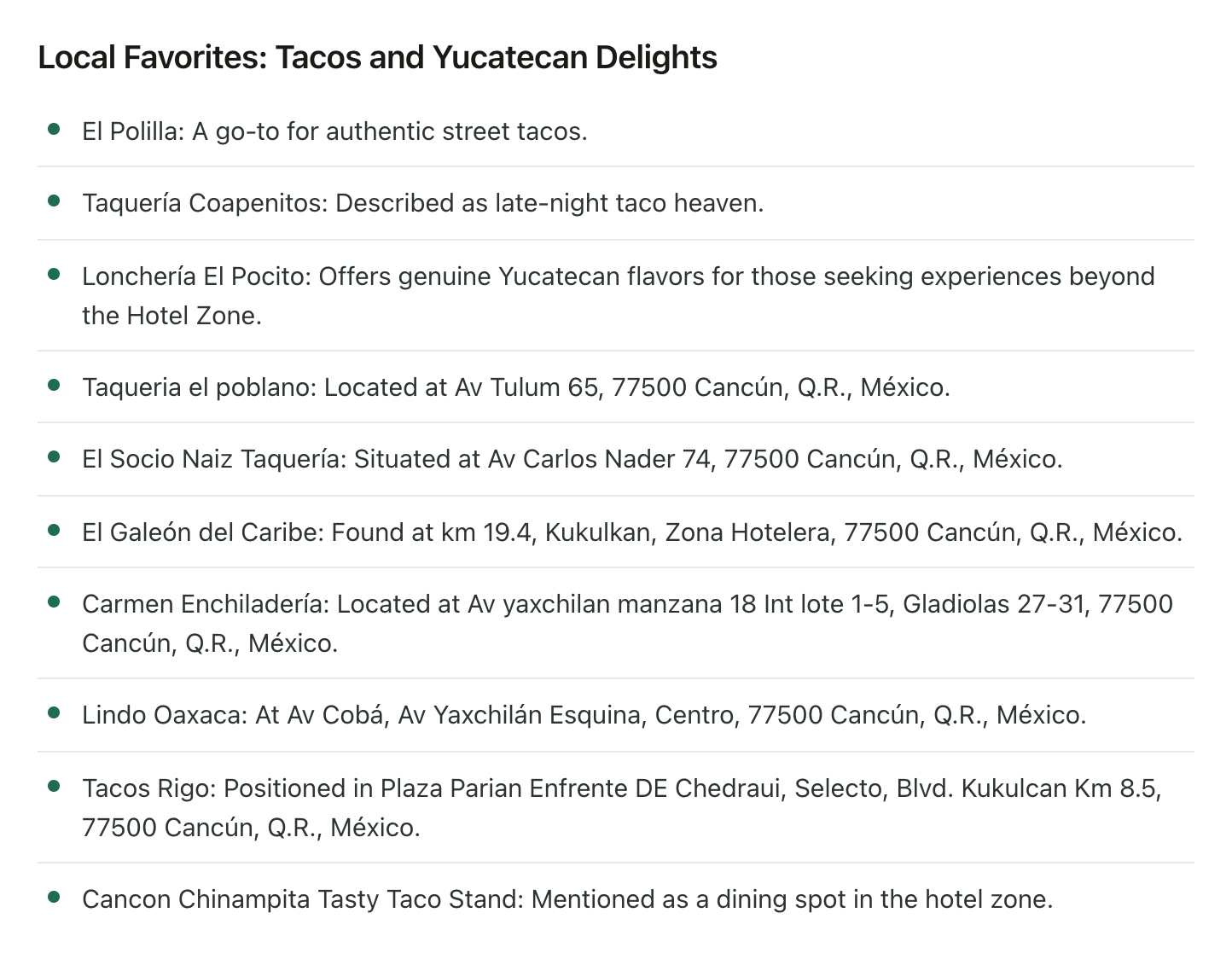
Six of the ten came back with a street address. El Galeón del Caribe's is "km 19.4, Kukulkan, Zona Hotelera," because addresses along the Hotel Zone's main boulevard go by the kilometer marker, which is exactly the kind of detail nobody keeps from a video. The rest are names, and a name plus the city is usually all Apple Maps search needs. Either way it's text, so getting a place into your guide is copy, paste into Maps, Add to Guides. No screenshots, no rewinding.
The same insight puts the places it can pin down with confidence on a map, so you can see the shape of the trip before you build the guide:
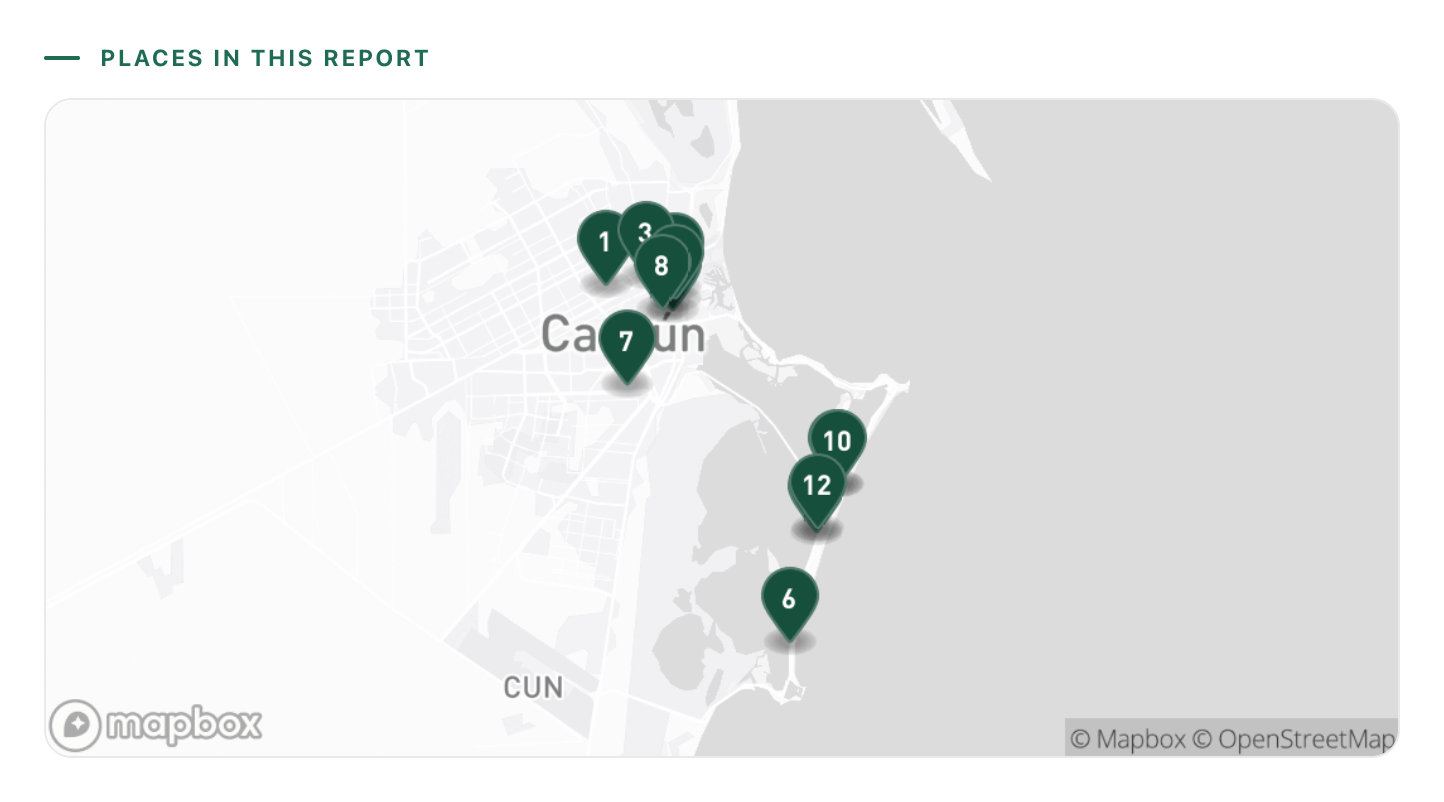
Most of the taco spots cluster downtown, and the themed restaurants sit out along the Hotel Zone. That's two different evenings, not one walking route, and it's obvious in a second on a map and invisible in a grid of thumbnails.
To set it up:
- Sign up, and add the TikTok username you'll be sending from.
- Follow @lilyboardco on TikTok so you can message it.
- On a travel TikTok, tap Share and send the video itself to @lilyboardco. A pasted link doesn't get picked up.
Nothing comes back in the chat. The video shows up in your dashboard.
What it won't do
It won't put anything into Apple Maps for you. It hands you the names as text, and the guide, the notes and the download are still yours. It reads only the TikToks you send it, and it can only find a place somebody named. On the free plan it works from what was said, using TikTok's captions, plus the description, so a video TikTok never captioned has only its description to go on. Plenty of travel TikToks are music with the names typed on screen, and reading that text takes Standard or Pro. A name TikTok misheard stays misheard, which is why every insight links back to the videos. And the map only pins a place it can match with confidence, which a lot of venues in Japan can't be yet.
Start with the trip you've actually booked
Make the guide tonight, even if it's empty, and name it after the trip. Then go through your favorites and share that trip's TikToks to @lilyboardco. The free tier covers 10 videos a month, no card. When the insight lands, the places go into the guide in one sitting, and the couch part is done before you pack.
The travel enthusiasts guide shows what the whole thing looks like once you're there.
Try it on your own saved videos
Free for 10 videos/month. No card required. Send any Reel or TikTok to @lilyboardco and get a summary, transcript, and category in minutes.
Start for free